
Contents
- Accessing Reports
- Available Report Types
- Creating a Custom Report
- Filtering Your Report Data
- Downloading Report Data
Applies to: the Hapn web app at app.gethapn.com and the Hapn mobile app.
Accessing Reports
Reports provide comprehensive historical data about your trackers and their activity. Reports are available on the web and in the mobile app. On the mobile app, tap Menu → Reports; reports are grouped under All, Tracker, Asset and Alert tabs. Inside a report, the bar at the bottom has icons for Manage view (sliders: filters and columns), Schedule (alarm clock) and Export CSV (download). The steps below describe the web app.
To view reports:
- Log in to your account at app.gethapn.com using a web browser
- Click on the reports icon on the left-hand side
- Choose the specific report type you want to view from the available options
Available Report Types
Hapn offers several different report types to help you analyze your tracking data. Choose the report that best matches the information you need to analyze.
- Alerts Feed: View and sort real-time alerts from your trackers
- Place Analysis: View all place activity by tracker
- Trip and Stop History: View your assets' trips and stops over time
- Tracker Positions: View all positions generated by your trackers
- Asset Activity Overview: Summary of engine hours, movement, and odometer readings by tracker
- Time-Based Activity Analysis: Analyze asset usage by day, week or month
- Tracker Status and Health: View a snapshot of your tracker status, including battery level, online/offline, location and more
- Starter Interrupt Activity Log: Tracks all Starter Interrupt events, including trigger times, duration, and status, for better equipment security management
You also have the option to create a Custom Report; click here for more information.
Creating a Custom Report
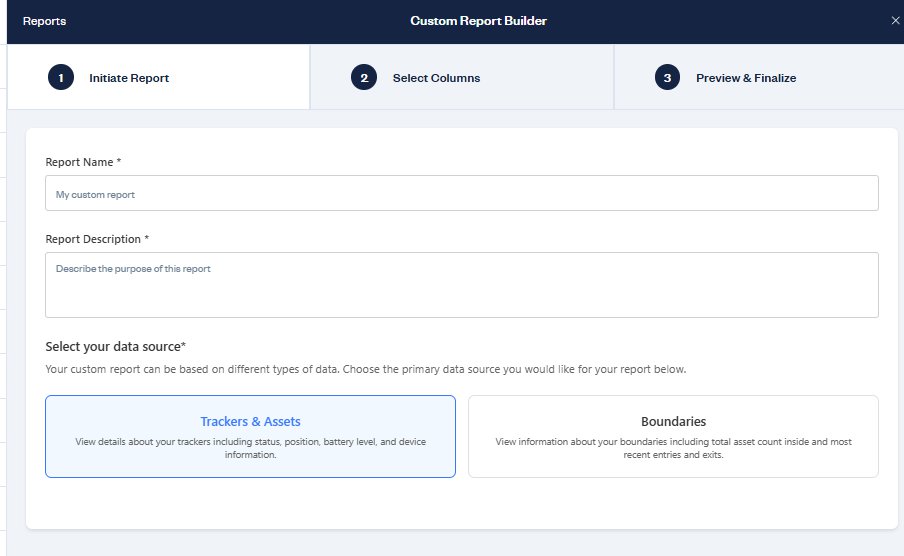
You can build your own report with exactly the columns you need.
To create a custom report:
- Select Create Custom Report in the Custom Reports section at the bottom of the Reports page
- Name your report, give a description and choose your data source
- Select the columns you want to see on your report
- Look at the preview of the report
- When done, click 'Save Report' at the bottom
For the full walk-through — the three data sources, every column group, and two behaviours worth knowing before you pick columns — see How to Build a Custom Report.
Filtering Your Report Data
By default, reports display data from the current day. You can filter your report data with the Filters button in the toolbar above the report.
To filter your report data:
- In your selected report, click Filters in the toolbar above the table
- Open the field you want to filter by (Tracker, Type, Date, etc.)
- Choose the values you want; the options depend on the field:
- For date columns: Select date ranges or specific dates
- For tracker columns: Select specific trackers from the list
- For text columns: Search for specific text or select from available options
- Apply your selections to filter the report
- You can apply filters to multiple columns simultaneously for more refined results
Tip: To clear your filters, select Reset in the Filters panel.
Downloading Report Data
You can download any report as a CSV file to analyze in spreadsheet applications or share with others.
To download report data:
- View the report you want to download
- Apply any desired column filters to refine the data
- Look for the "Export CSV" button in the top right corner of the report page
- Click the "Export CSV" button to download the report with your current filters applied
- The file will be saved to your default downloads location
For more detailed instructions on working with exported data, including how to use it in different spreadsheet applications and troubleshooting tips, see our article on How to Export and Use Report Data.
Behavior and safety reports
For fleets running OBD trackers, two dedicated reports go deeper on how vehicles are driven. The Driving Behavior Report rolls harsh acceleration, braking, cornering, and speeding into a per-asset and fleet-wide score, and the Speeding Report lists every speeding event by severity, location, and time over the limit. The Idling Time report rounds out the picture with per-day idle hours for every vehicle — a quick way to find fuel being burned while parked.
Need more help? Contact our support team at support@gethapn.com or submit a ticket. You can also call support at 877-212-7400 or chat with us — see How to Contact Hapn Support for hours.
Related help
- How to Schedule a Report by Email
- Getting Your Data Out of Hapn: Exports, Scheduled Reports and the API
- Using the Trips Page: Your Whole Fleet's Journeys in One Place
- Every Hapn Report and What's In It: Columns, Filters and Exports
- How to Export and Use Report Data
- How to View Your Tracker's Location History
- Understanding the Generate Trips Feature
- Understanding the Driving Behavior Report
- Understanding the Speeding Report
- Understanding the Idling Time Report
- Understanding the Fleet Utilization Report
- Using the Place Analysis Report
- Using the Tracker Place Analysis Report
Comments
0 comments
Article is closed for comments.